> ## Documentation Index
> Fetch the complete documentation index at: https://docs.pointpair.com/llms.txt
> Use this file to discover all available pages before exploring further.
# WooCommerce
> PointPair WooCommerce Installation
## Installation
##### 1. Download the PointPair Payments for WooCommerce plugin from the Merchant Portal business or docs page
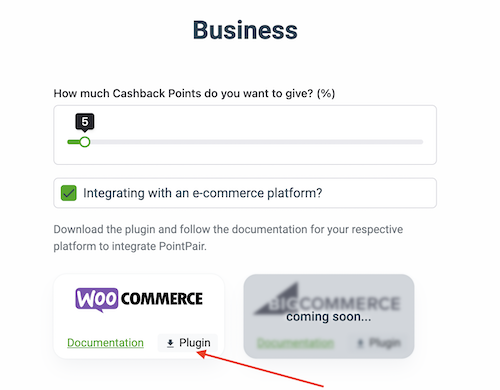 ##### 2. Navigate to the WordPress Admin Dashboard
##### 3. Navigate to the Plugins > Add New
##### 2. Navigate to the WordPress Admin Dashboard
##### 3. Navigate to the Plugins > Add New
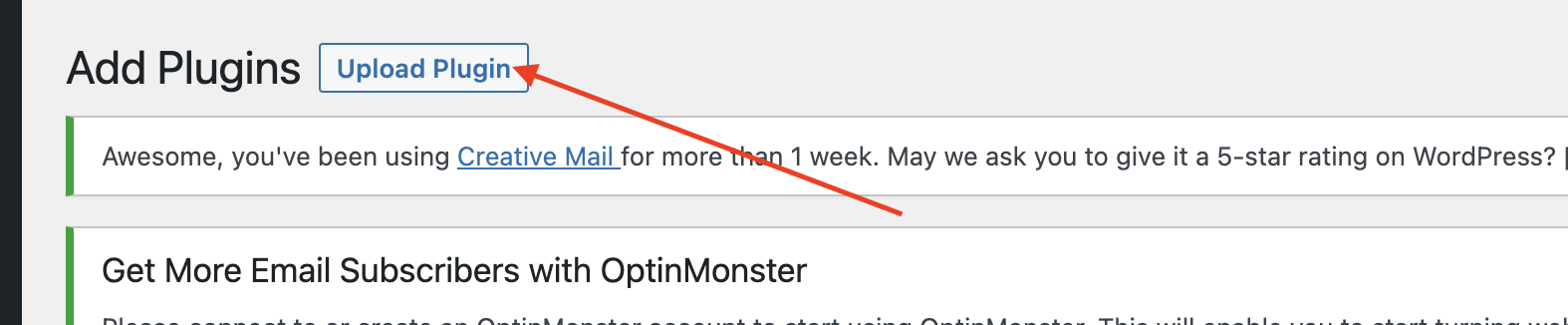
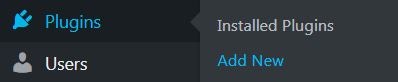 ##### 4. Click the 'Upload Plugin' button
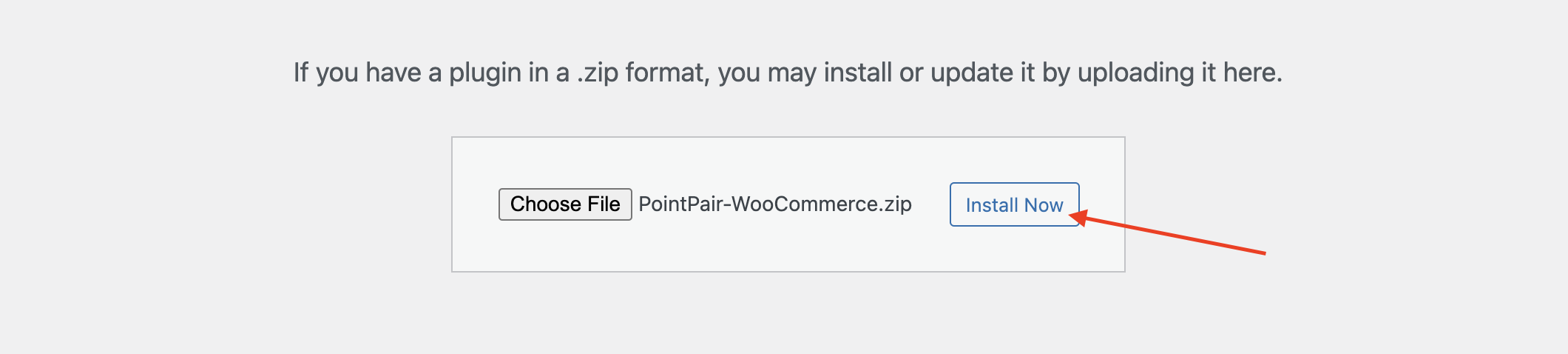
 ##### 5. Upload the PointPair-WooCommerce.zip file you downloaded in step 1
 ##### 6. Click 'Install Now'
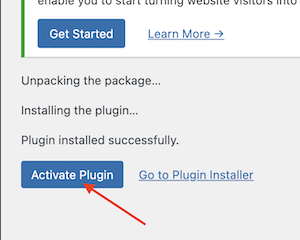
 ##### 7. In the next page click 'Activate Plugin'
 ## Configuration
##### 1. Navigate to: Plugins > Installed Plugins
##### 2. Locate the 'PointPair Payments for WooCommerce' in the plugin list and click the 'Settings' button
## Configuration
##### 1. Navigate to: Plugins > Installed Plugins
##### 2. Locate the 'PointPair Payments for WooCommerce' in the plugin list and click the 'Settings' button
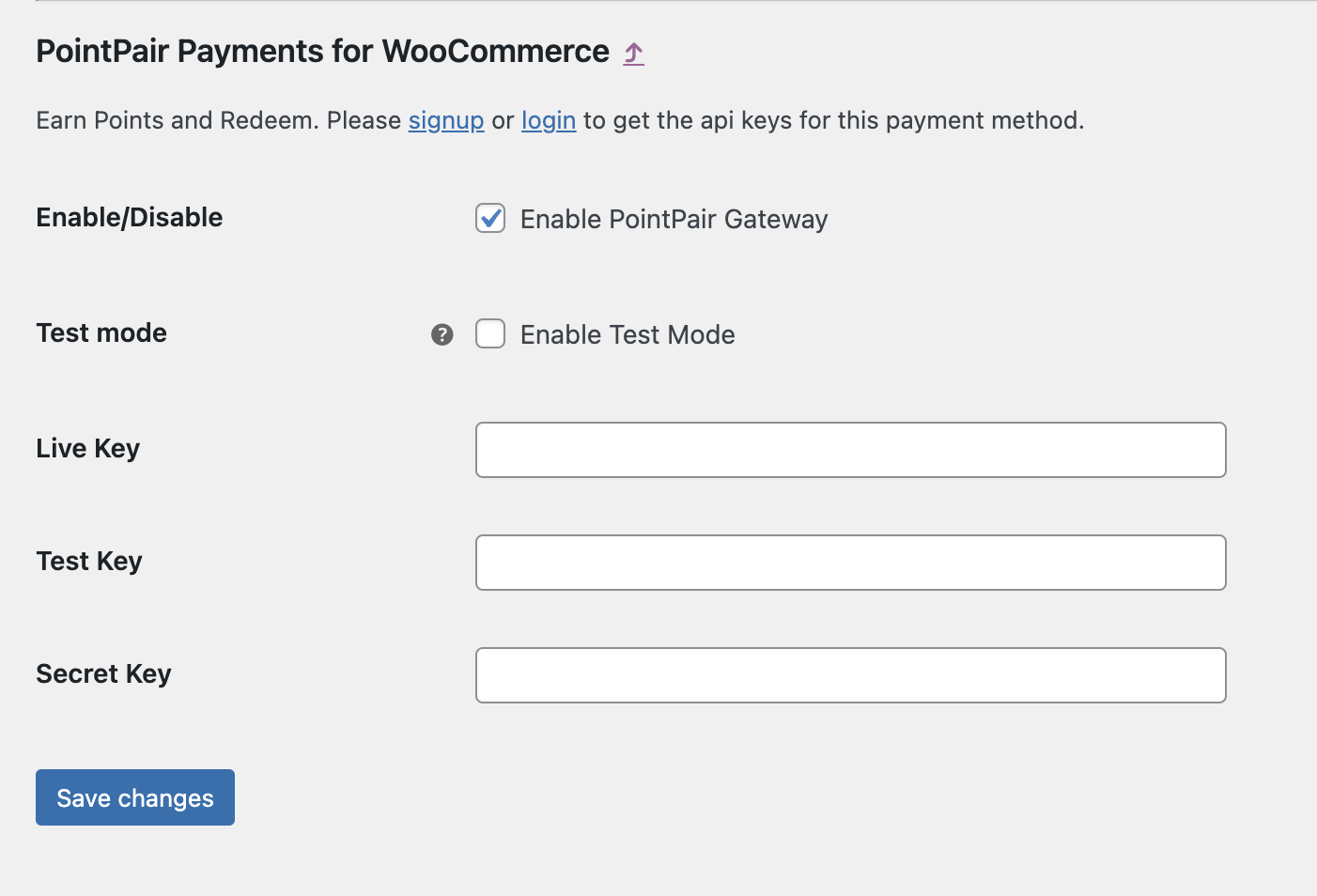
 ##### 3. Go to the API Keys section in the plugin settings page
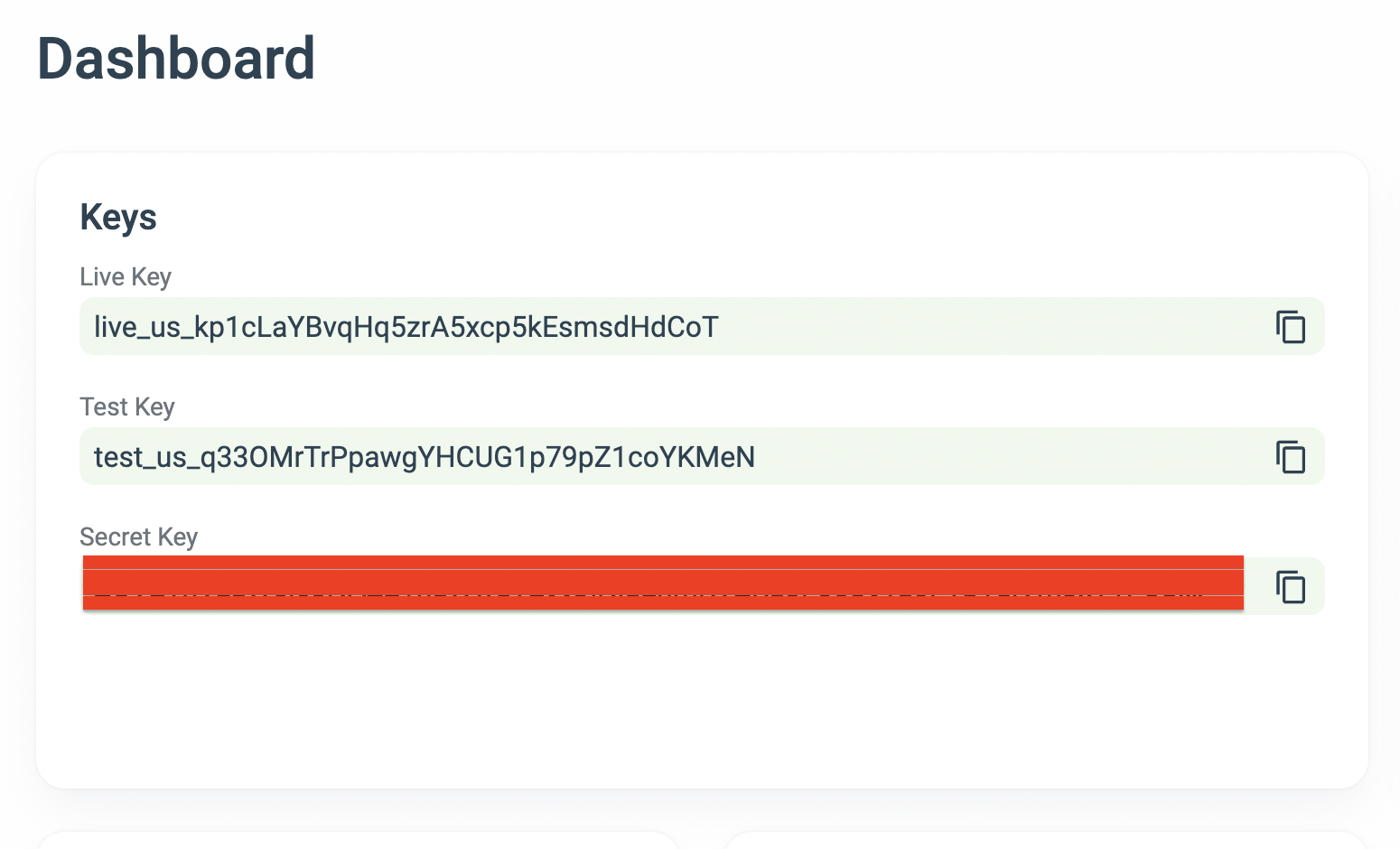
 ##### 4. Head over to the PointPair Merchant Portal Dashboard to retrieve the API and Secret Keys
 ##### 5. Add the Keys in their respective fields
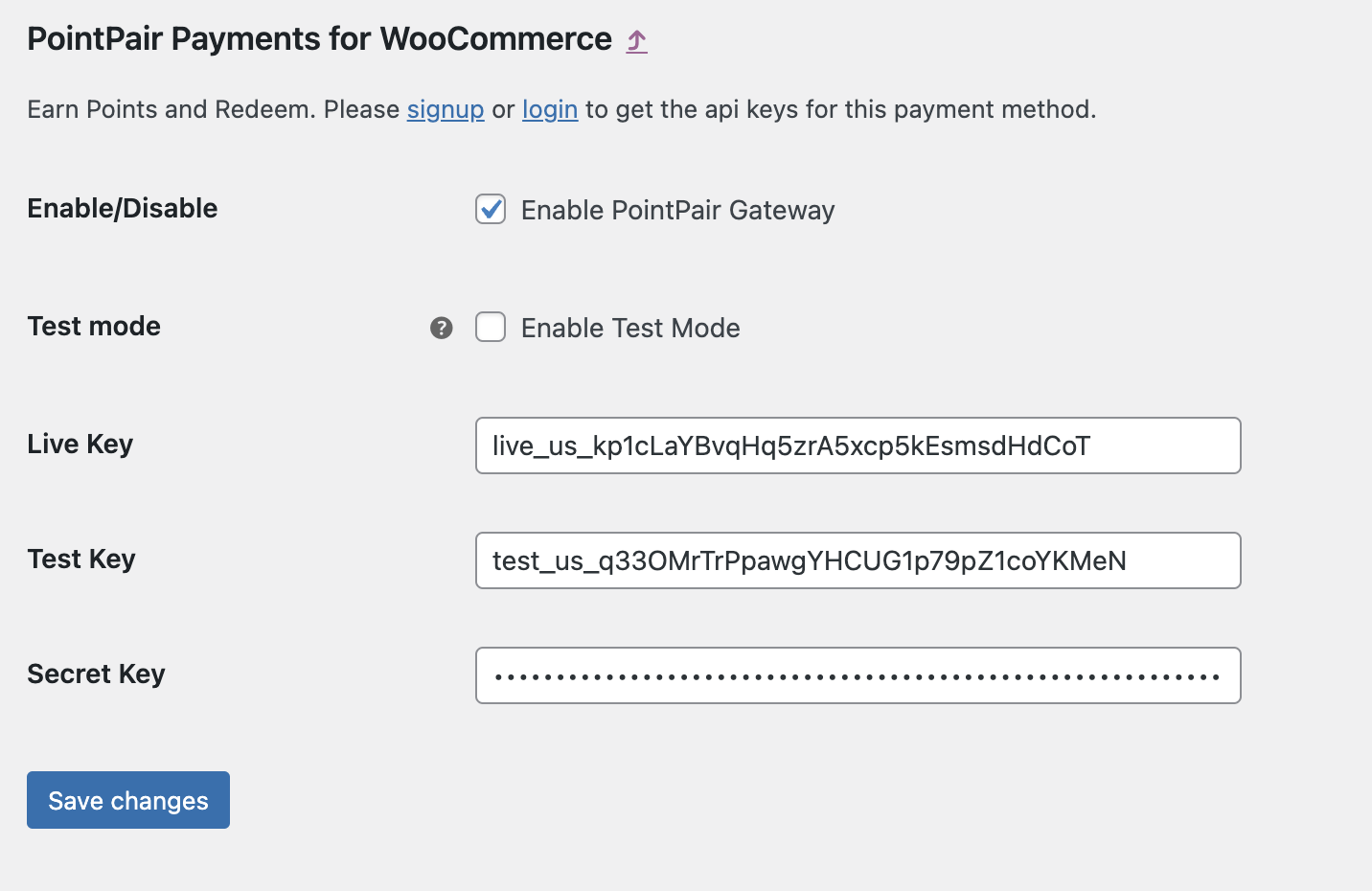 ##### 6. Click the 'Save changes' button at the bottom of the page
##### 7. Congratulations PointPair is now live on your website!
##### 6. Click the 'Save changes' button at the bottom of the page
##### 7. Congratulations PointPair is now live on your website!